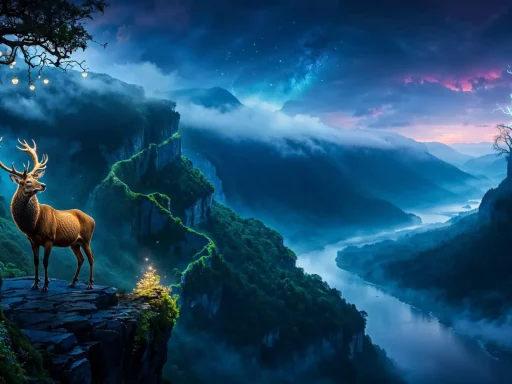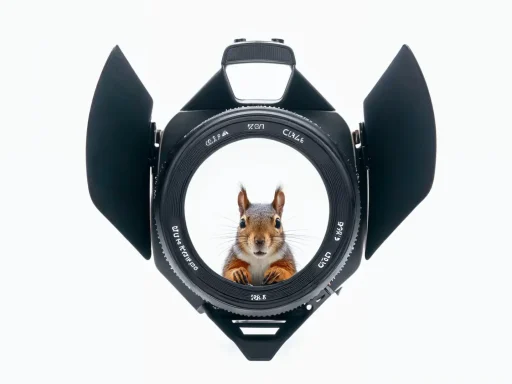
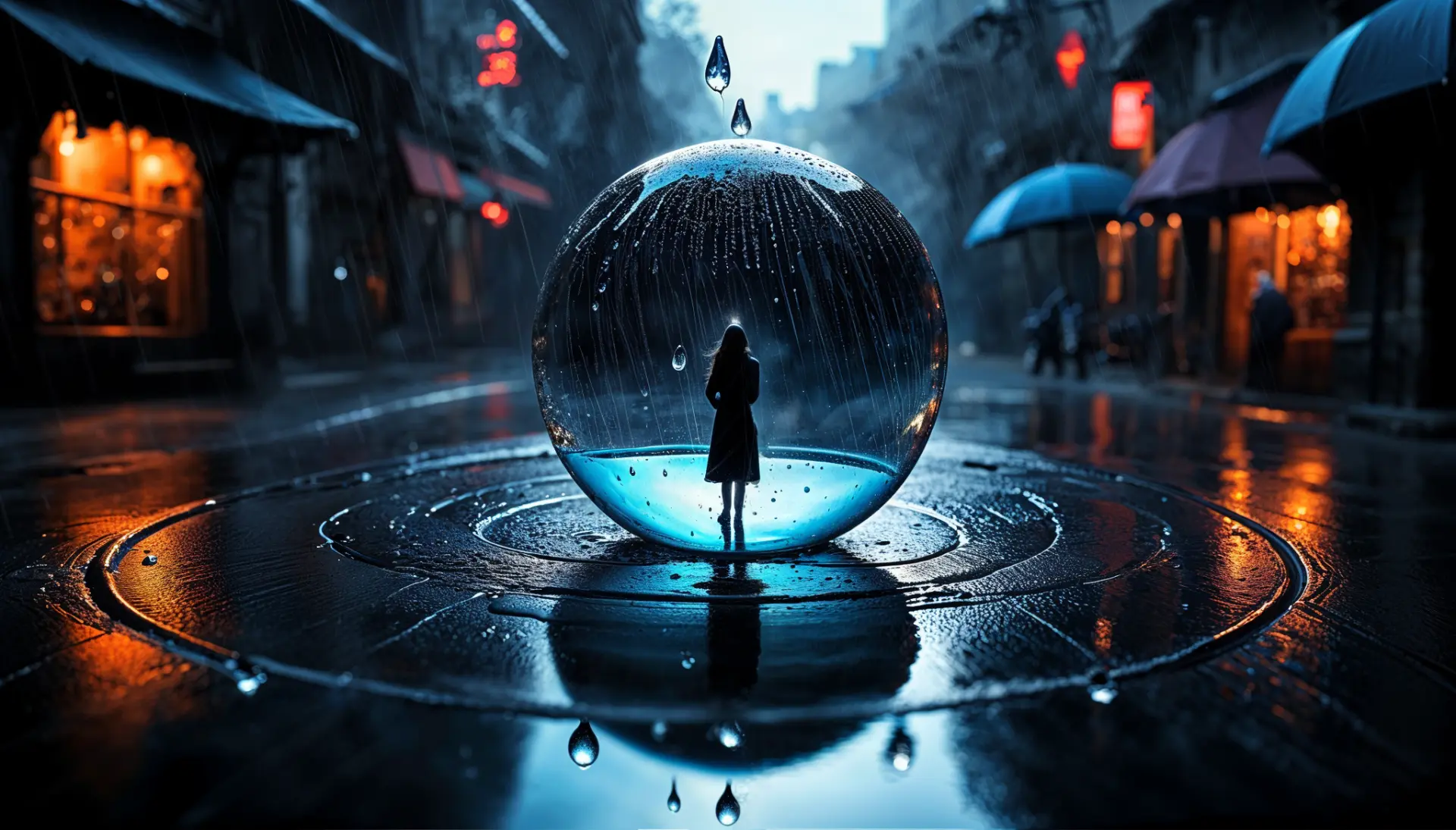

Tengr.ai’s Image to Image function is a versatile and useful tool for transforming your images with the power of AI. Whether you’re trying to breathe life into your sketches or blueprints, rejuvenate your old, blurry photos, or enhance your existing images, Tengr.ai’s processing modes offer something for everyone. They offer a whole range of possibilities to edit and enhance your AI-generated images, each of them tackling specific creative and editing tasks.

In this blog post, we’ll explore the capabilities of each of these innovative modes in depth, so you can better understand how to make the most of them. Let’s get started!

1. Sketch2Img
Sketch2Img mode, formerly known as Sketch Master, is perfect for when you want to bring a drawing to life. Maybe you have a drawing or sketch, and you’d like to transform it into a polished, realistic artwork. Or your kid draws something cute, and you want to surprise them by transforming the drawing into a real picture. Whether you have a basic pencil drawing or a digital one made with Line Art style, Sketch2Img preserves the essence of your sketch and fills in details, adds vibrant colors and textures, and makes it more photorealistic. In short, it makes your vision come alive.
All you have to do is upload your image using the ‘Image to Image’ option on the homepage, and then from the ‘Image Processing‘ dropdown menu, choose Sketch2Img. At the ’Influence’ option, you can choose a level ranging from ‘Minimal‘ to ‘Maximum‘. However, the recommended level is ‘Medium‘. This is for how much you want the uploaded image to influence the result. There is also a short description on the icon itself: “Transforms drawings into realistic or stylized images.” This summarizes the essence and function of this mode very well.
Important to note: the best results come from clean, well-defined, sharp lines. This helps Sketch2Img mode to translate your lines into natural, detailed images. However, if you’re not aiming for a photorealistic piece, try using more abstract styles like ‘Abstract ink’ to achieve a uniquely stylized sketch.


As you see, we got a truly unique and special effect by using Sketch2Img on a Line Art portrait. These processing modes offer countless options for creating stunning images; you just need a bit of creativity and practice.
Tip: If the resulting image still has visible sketch lines, use Reimagine or 3D mode to soften them more. They can give a whole new look to your image.


We loved the initial result, but wanted to show you how far you can get from a simple Line Art drawing. So, we further enhanced it using first Reimagine and then 3D mode to show you the possibilities. Additionally, we show you the different outcomes from using a prompt versus not using one.


All these images resulted from the same starting sketch. The possibilities are truly endless.
It’s amazing how much you can achieve from a simple sketch with some creativity and the innovative tools of Tengr.ai. You can find out more about Sketch2Img from our related blog post (formerly called Sketch Master).
2. Reimagine
Reimagine, previously known as Creative Mode, is an amazing tool designed to help you when you want to create something unexpectedly creative. What is truly remarkable about Reimagine is its ability to surprise you with imaginative details every time. It transforms images with high creativity while still keeping the core elements of the original image. It adds vibrancy and an artistic touch to make your image stand out.
Here is the short description found on the website: “Gives your image new colors and textures but keeps the original composition.“
Reimagine can make your images or sketches come alive with minimal effort. See our related blog post for an interesting tutorial.
How to use Reimagine? You upload the image you wish to transform and choose an option from the ‘Modification‘ slider. You can choose from ‘Very Subtle‘ to ‘Extremely‘, ‘Normally‘ being the recommended value. If you want specific changes or details, enter a prompt. Otherwise, use it without a prompt and let Tengr.ai do its magic. Next, we’ll see a few examples of transformations made with this amazing processing mode.


Here is an entire transformation: starting from the same initial image, using Reimagine, we explored Tengr.ai’s different built-in styles. We applied each style without any prompt modification. This is to showcase how the various styles alone can transform the image in this mode. It truly is a creative tool!


3. 3D Mode
3D Mode, formerly known as Depth Mode, is another amazing option for enhancing your images. Basically, it’s described as: “Adds depth, textures, and spatial dimension.“
It’s designed to add depth and spatial dimension to your images, all while preserving the original composition and structure. It emphasizes depth, making the subject or object of your image stand out by visually separating the foreground elements from the background. This way, your flat image will gain some dimension, which is a huge bonus for architectural designs, for example.


After uploading your image from the Image to Image option, select 3D from the Image Processing dropdown selector, then choose the level of ‘Influence‘ you want the uploaded image to have. You can choose from 5 different levels, ranging from ‘Minimal‘ to ‘Maximum‘. ‘Maximum‘ is the recommended level.
Next, you can choose any style you want and decide whether to use a prompt or just generate without one. With so many customization options, you have incredible flexibility to create stunning art. So, start experimenting to explore every possibility this amazing platform has to offer.

You can create countless variations starting from the same image, just by using the amazingly creative styles Tengr.ai has to offer, even without entering a prompt.


For more details about this mode and for an interesting tutorial, check out our related blog post.
4. AI-rchitect
AI-rchitect, previously known as Blueprint Mode, takes your technical-looking blueprint and turns it into a more photorealistic or stylized representation of it: “Turns architectural sketches and plans into photo-realistic visuals.” – as the short description on the website says.
It’s perfect for architectural visualizations. It transforms basic architectural concepts into visually compelling images, either by adding realistic details or applying unique stylistic touches.


5. Human Pose
In the field of visual arts, human poses have great importance, often revealing emotions, stories, and even communicating intentions without words. By using Tengr.ai’s Human Pose, you can enrich your creations with the vast vocabulary of the human body.
The website describes it like this: “Replicates human poses based on the reference image.“
So, basically, to replicate a specific pose in Tengr.ai, you need to upload a reference image. You can use an image or a 3D model poser, like those on PoseMyArt or similar sites, to get the exact pose that you want for your final image.
After you’ve designed or downloaded a 3D model, you upload it with the Image to Image option, select Human Pose mode, and turn it into a lifelike representation of that same pose. Tengr.ai will try to match that exact pose while incorporating the details of your prompt. This makes it easier to create visually stunning images that match specific requirements.


Now, let’s see a ninja jumping pose:


To learn more about Human Pose and see more examples, read our related blog post.
6. Retake
Retake, also known as Rejuvenate Mode, is designed to revive and restore old, blurry, or damaged images. It can enhance the clarity, sharpness, and the vibrant quality of your photos. If you want to breathe new life into your photos, this mode can help you do that.
Upload an image of a blurry, scratched, or damaged photo, the same way as with the other processing modes, but this time select Retake. You can use it freely without a prompt, just by trying out different styles to see which one gives you the best result. Alternatively, enter specific requests in your prompt like ‘photo restoration’, ‘remove scratches’, ‘revive colors’, or ‘enhance clarity and sharpness’ for more targeted improvements.
Next, at the ‘Modification‘ option, you have to choose the level, which can range from ‘Very Subtle‘ to ‘Extremely‘. You may need to experiment with different levels to achieve the desired result. Sometimes, using higher levels, like ‘Extremely‘ can alter facial features, which is not a result you want when restoring old photos. ‘Normally‘ being the recommended level, usually works best. You can get pretty amazing results with it.


The best part is its versatility: it can restore old, blurry, or faded analog photos, enhance AI-generated images with minor flaws, and it can bring back lost details and colors. It refines your images without changing their original essence.
To find out more about Retake and see more examples, read our related blog post.
7. BG Swap
This is a game-changing feature for transforming the backdrop of your AI-generated images while keeping the subject intact. By changing the background, you can create an entirely different atmosphere, mood, and narrative, so you basically change the visual impact of your images.
The best thing about BG Swap, formerly known as ScenaNova, is the fact that, if used right, it keeps the subject unchanged while generating an entirely new background, based on your prompt. This makes it ideal for content creators, designers, marketers, or AI enthusiasts who want to reimagine their visuals quickly and efficiently. Its description on the Tengr.ai website says: “Change the setting without touching the subject.“
Simply upload the image you want to change the backdrop in, choose a modification level from ‘Very Subtle‘ to ‘Extremely‘, and specify the desired background in the prompt. By adjusting the modification level, you can decide on subtle changes or more dramatic effects. You might need to do some experimenting until you get the desired result, but our blog post with a detailed explanation of this feature can be of great help.
The basic idea is that you can use BG Swap to reimagine the setting of your image, to place your subject into an entirely different background. Or, you can transform a product image to match different themes, such as changing a studio backdrop to an outdoor scene or giving it a holiday theme.


Additional Img2Img Features: Face Swap and Upscaler
Apart from the main processing modes we covered above, Tengr.ai has two more powerful and innovative features: Face Swap and Upscaler. These work on an image-to-image basis as well. They provide unique ways to enhance your creations.
- Face Swap allows you to easily and seamlessly swap faces in your images, making it ideal for professional use (e.g., in marketing and content creation), as well as for fun personal projects.


- Upscaler helps improve the resolution and fine details of your images, making them clearer, sharper, and more vibrant.
For more in-depth information about how these extra features work and to see practical examples, you can check out the dedicated blog posts: Face Swap and Detailer Upscaler.


Conclusion
Tengr.ai’s image to image processing modes are designed to help creators of all kinds of backgrounds elevate their visuals. These tools can transform simple ideas into stunning creations for digital artists, designers, marketers, content creators, hobbyists, or those curious about what AI can do.
Explore these modes for yourself and see what interesting use cases you can come up with, and which one sparks your creativity the most. Also, don’t forget to share them with us on our social media.